
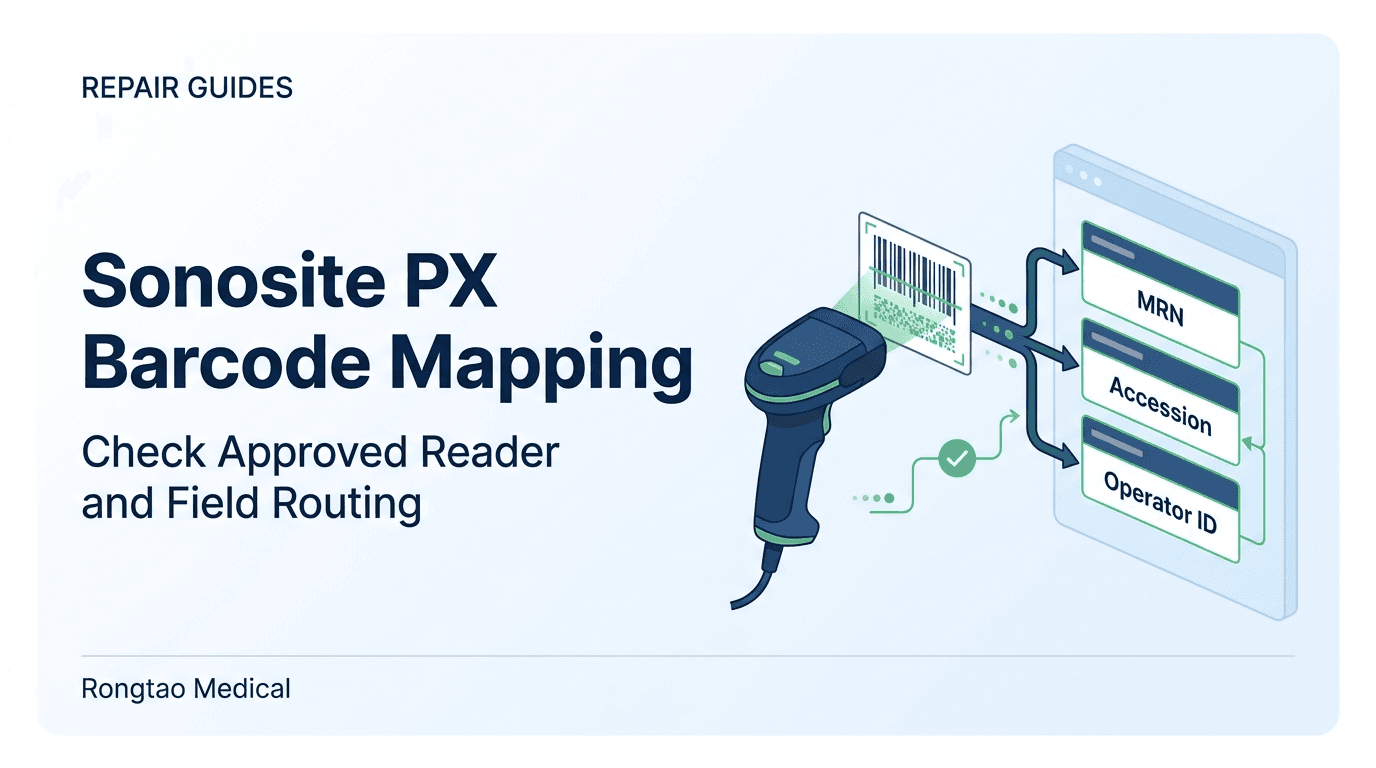
The support ticket trap: hardware fault or configuration gap?
Barcode scanners are added to point-of-care ultrasound carts to cut transcription errors. Clinical engineering teams then receive tickets saying the scanner on a Sonosite PX is “broken” or “scrambling patient information.” Typical presentations include:
- Every scan—wristband, requisition or encounter sheet—drops the whole decoded string into the Medical Record Number (MRN) field.
- A clinician scans an order barcode expecting the accession field to fill, but the value lands in MRN or overwrites a value already typed.
- A scan opens a worklist list instead of typing anything, returns no match, or shows records the user did not expect.
- A scanner moved from an older cart beeps on a barcode, yet no characters appear anywhere on the PX.
Staff unfamiliar with the platform often suspect a corrupted software image, a failed USB port or a console board. As in our Sonosite Edge II needle guide decision path, the cheaper and faster first step on a compact system is to rule out documented operating states before spending money on hardware.
Barcode entry on the PX depends on four separable layers: the physical scanner and the configuration stored in it; whether the system recognizes it on the USB settings page; system settings such as Barcode auto query and any custom programming; and where the operator's focus was at the moment of the scan. Each layer has a different owner and a different fix.
Which scanner instructions apply? The documents changed
Mixed fleets often run legacy Sonosite systems (X-Porte, Edge II, SII) alongside the current family (PX, LX, ST, MT, ZX). When a scanner is needed, a technician may pull one from a retired cart, or follow whatever printed setup sheet is in the accessory drawer. The official documents show three distinct generations of setup instructions, and they do not say the same thing. 1
- Legacy carts (P12173-08): listed for X-Porte, Edge II and SII, it covers the JADAK flexpoint HS-1M and the Symbol LS2208. The JADAK sequence programs USB keyboard mode with an STX prefix, an ETX suffix and DOS CTRL ASCII mode; the LS2208 uses its own nine-barcode sequence. 1 4
- Sonosite PX, 2020 (P22236-01): states that the PX is designed to work specifically with the JADAK JDK-10175 USB scanner and says “Do not use other JADAK Flexpoint HS-1M models.” It prints two programming barcodes—USB COM Port Emulation, then Data Format Configuration—to be scanned once per new scanner. 3
- Current family, 2024 (P22236-06): covers PX, LX, ST, MT and ZX. It refers generally to JADAK scanners supported for use with FUJIFILM Sonosite systems, then says: connect the scanner, turn the system on, check that the scanner appears on the USB setup page, and verify by selecting a text field and scanning a patient barcode. It names no part number and prints no programming barcodes. 2
The practical consequence is a revision trap. A team working from the 2020 sheet may reject a scanner because its label is not JDK-10175, or rescan old programming barcodes as a “fix”. A team working from the current sheet may assume any JADAK scanner will appear on its own. Neither document explains why it changed. Before a part number becomes a pass/fail rule, confirm with FUJIFILM Sonosite which scanner model and configuration it supports for your system and software version. The PX user guide also lists a barcode scanner among the accessories tested for electromagnetic compatibility and warns that other accessories and cables may increase emissions or reduce immunity. That is a second reason not to substitute an arbitrary reader. 2 3 5
Programming barcodes change the configuration stored in the scanner. The legacy JADAK sheet programs keyboard mode with STX/ETX framing; the 2020 PX sheet programs COM-port emulation and a data format. A scanner carried over from an X-Porte cart may therefore hold a different configuration from one set up for a PX, and no public document says what a PX does with it. Treat it as unverified, not as proof of a console fault. 3 4
| Document (date) | Systems listed | Scanner named | Programming step | Verification step |
|---|---|---|---|---|
| P12173-08 (dated 11/2017; index 2018-03-22) | X-Porte, Edge II, SII | JADAK flexpoint HS-1M; Symbol LS2208 | JADAK: two barcodes (USB keyboard, STX prefix, ETX suffix, DOS CTRL ASCII mode). LS2208: nine barcodes. | Open the patient form, scan a barcode; the patient ID (and associated information, if any) should populate. |
| P22236-01 (6/2020; historical) | Sonosite PX | JADAK JDK-10175; “Do not use other JADAK Flexpoint HS-1M models” | Once per new scanner: USB COM Port Emulation, then Data Format Configuration. | Configured scanner appears on the USB setup page; open the form, scan, confirm the appropriate fields fill. |
| P22236-06 (Sep 2024; current on index) | PX, LX, ST, MT, ZX | “JADAK barcode scanners supported for use with FUJIFILM Sonosite” (no part number) | None printed. | Scanner should appear on the USB setup page; open the form, select a text field, scan, confirm the appropriate fields fill. |
| P22992-03 (Sep 2024) | Supported FUJIFILM Sonosite systems | JADAK scanners supported on those systems | Custom programming: English only; contact customer representative. | Verify the custom program works as expected before use with patients. |
Source: FUJIFILM Sonosite documents P12173-08, P22236-01, P22236-06 and P22992-03, plus the User Documents index, reviewed October 18, 2026.
The USB settings page: the first recognition check
Both PX instruction revisions use the same recognition test: a connected, correctly set-up scanner appears on the system's USB setup page. In the PX user guide this is the USB settings page (system menu → System Settings → USB), which shows information about connected USB devices. 2 3 5
A decode beep only shows that the scanner read the symbol. It does not show that the PX received anything. So the USB settings page is the boundary between “scanner-side” and “system-side” questions. If the scanner is listed and a selected text field fills during a synthetic test scan, the connection works and the investigation moves to settings and workflow. If it is not listed, the next questions are scanner identity and configuration, not board replacement.
| Observation | What it establishes | What it does not establish | Next step |
|---|---|---|---|
| Scanner listed on USB settings page; a selected text field fills with the synthetic value | System recognizes the scanner and accepts its input | That routing, auto query or custom programming is set as users expect | Move to the field-routing and settings checks |
| Scanner listed; nothing types when no field is selected, and a worklist list appears | Consistent with Barcode auto query being on | That the barcode encodes the identifier the worklist expects | Check the setting, the barcode content and worklist connectivity |
| Scanner beeps on the barcode but is not listed | The scanner decodes symbols | That the PX recognizes this scanner or its stored configuration | Record make, model, label part number and source; confirm supported scanner and configuration with FUJIFILM Sonosite |
| Scanner not listed, and a known-good USB storage device is also not recognized in the same port | A problem beyond the scanner is more likely | Which component has failed | Qualified service or FUJIFILM Sonosite Technical Support; do not order boards on this observation alone |
Source: Rongtao Medical reading of FUJIFILM Sonosite P22236-06, P22236-01 and the Sonosite PX User Guide P21894-09. Interpretations are triage guidance, not OEM diagnostic codes.
Why did the scan land in MRN? Understanding field-routing semantics
The most common complaint is: “Every time I scan a wristband, everything dumps into the MRN field.”
For a non-programmed scanner, that is the documented outcome. The PX user guide says the scanner can be used in imaging mode, in the patient form or in a worksheet, and describes the result of a scan: 5
“If you are using a non-programmed barcode scanner and have selected a text field in the patient form, data appears in the field.
If you are using a non-programmed barcode scanner and did not select a text field, the MRN text field auto-populates.”— FUJIFILM Sonosite PX User Guide (P21894-09), 'Entering patient information with a barcode scanner'
The Sonosite LX user guide uses the same rule, which suggests a shared behavior across the current family. Confirm it on each system and software version rather than assuming it. 6
A non-programmed scanner sends what it decodes; it does not split one string into name, birth date and record number. If a wristband barcode encodes a fictional composite string such as TEST^PATIENT^19800101^9999901, scanning it with no field selected puts that whole string into MRN. That is the scanner and the PX behaving as documented. The fix is either operator practice—select the target field before every scan—or a validated custom program.
- Field selected: the decoded value goes into the highlighted field, such as Accession. 5
- No field selected: the MRN field auto-populates. 5 6
- Custom-programmed scanner: the system populates the patient form with the scanned information. 5
- Barcode auto query on: the system queries the worklist with the scanned patient ID; matching patients appear in the worklist for the user to highlight and select. 5
| Scanner / setting | Operator state | Documented outcome | Common misreading |
|---|---|---|---|
| Non-programmed; auto query off | No text field selected | MRN field auto-populates | “The scanner maps everything to MRN—software is corrupt.” |
| Non-programmed; auto query off | Text field selected (e.g. Accession) | Data appears in the selected field | Works for one user, “fails” for another who did not select a field. |
| Custom-programmed | Scan from imaging, form or worksheet | System populates the patient form with the scanned information | Wrong boxes fill after a wristband format change and the scanner is blamed. |
| Barcode auto query on | Scan a patient ID barcode | Worklist is queried; matching patients appear for selection | “Nothing typed” or “wrong patient list” when the barcode is not the ID the worklist expects. |
| Generate patient ID on | Study started from the patient form with no ID entered | System generates a unique patient ID (optional prefix) | A generated ID appears because the scan never captured an ID—mistaken for misrouting. |
Source: FUJIFILM Sonosite PX User Guide P21894-09 (pp. 64 and 71) and LX User Guide P28669-08; impact column is Rongtao Medical interpretation.
Custom programming and Barcode auto query
Facilities that want one wristband scan to fill several fields need custom programming. The PX guide points to the Barcode Scanner Expressions Supplement and to the customer representative for it. The supplement itself is short. It says the custom programming feature is available with JADAK scanners supported for use with FUJIFILM Sonosite systems, that custom programming is available in English only, that the customer representative is the contact, and that it supports listed 1D formats (including Code 39, Code 128 and Interleaved 2 of 5) and 2D formats (PDF417, Data Matrix and QR Code, excluding micro variants). 5 7
- Verify before patient use: both the supplement and the PX guide carry the instruction to verify that custom programming works as expected before using the scanner with patients. 5 7
- OEM-mediated: the public documents do not provide a facility-side authoring method. Obtain and change custom programs through the FUJIFILM Sonosite customer representative. 7
- “English only” is not defined further: the supplement does not say whether this refers to system language, documentation or encoded content. Facilities that run another system language, or encode non-Latin names, should ask the representative before planning a workflow around it. 7
- Change control (Rongtao recommendation): treat a custom program like any interface configuration. Re-verify it with synthetic barcodes whenever the wristband printer, symbology, field order or delimiters change.
Barcode auto query is the other frequent source of confusion. On the PX general settings page, selecting Barcode auto query makes the system query the worklist for patient information when a patient ID barcode is scanned. Matching patient information appears in the worklist, and the user highlights the patient and taps Select. 5
If users expect typed text but auto query is on, a scan looks like it did nothing, or it brings up an unexpected list when the barcode does not encode the identifier the worklist server matches on. If the worklist server cannot be reached, the problem belongs to the network or DICOM configuration, not the scanner. For that branch, see our guide to ultrasound DICOM export failures and network I/O diagnostics. Note also that the PX does not allow patient information to be edited if the exam was started from the worklist. 5
Generate patient ID is a separate patient-ID setting. When it is on, the system generates a unique patient ID upon starting a study from the patient form, unless a patient ID was entered manually or from the worklist; an optional prefix can be set. It does not route barcode data. Its relevance to triage is indirect: if a generated ID appears where a scanned ID was expected, the scan probably never reached the ID field. 5
Step-by-step triage: isolating the cause of incorrect field entry
Work from the cheapest observation to the most expensive conclusion. Use only synthetic test barcodes.
- Gate 1: Reproduce and record the state. Scan a synthetic barcode and note the screen (imaging, patient form or worksheet), whether a field was selected, and the result. Record whether Barcode auto query and Generate patient ID are on, and whether a custom program is in use. 5
- Gate 2: Field-focus check. Open the patient form, select the Accession field, and scan a synthetic 1D barcode. This matches the current P22236-06 verification step. If the value appears in Accession, the scanner, connection and basic entry work; explain the MRN rule and the select-the-field-first practice to the department. 2 5
- Gate 3: Worklist auto-query branch. If a scan opens the worklist, confirm the setting. Check that the barcode encodes the patient ID the worklist matches on, and that the worklist server is reachable. 5
- Gate 4: Custom program audit. If a custom program is in use, scan a synthetic wristband built to the current hospital format and compare each populated field. If the wristband format, symbology or delimiters changed, contact the customer representative for an updated program and re-verify before patient use. 7
- Gate 5: Recognition and scanner identity. Only if nothing appears even with a field selected: check the USB settings page. Record the scanner's make, model, label part number and source cart, and which instruction revision it was set up under. Do not rescan programming sheets written for another platform or revision. Confirm the supported scanner and configuration with FUJIFILM Sonosite, and test a known-good supported scanner and a USB storage device in the same port before drawing any hardware conclusion. 2 3 4 5
| Observed symptom | Most likely explanation | Verification step | Resolution | Owner |
|---|---|---|---|---|
| Whole decoded string lands in MRN | Non-programmed scanner; no field selected | Select Accession, rescan synthetic barcode | Train select-the-field-first, or request a custom program | Department lead / educator |
| Scan opens worklist; no match or unexpected patients | Barcode auto query on; barcode is not the expected patient ID | Check general settings; compare barcode content with worklist matching | Align barcode content with the worklist, or change the setting under governance | PACS / DICOM IT |
| Custom program fills the wrong boxes | Wristband format changed since the program was verified | Compare synthetic wristband string with populated fields | Updated program via customer representative; re-verify | Clinical informatics with FUJIFILM Sonosite |
| Generated ID appears instead of scanned ID | Scan did not reach the ID field | Repeat Gate 2 with the ID field selected | Correct workflow before study start | Department lead |
| Beeps, not listed on USB settings page, nothing types | Unverified scanner or configuration for this system | Record identity, source and setup revision; try known-good supported scanner | Confirm supported scanner/configuration with FUJIFILM Sonosite | Biomedical engineering / HTM |
| No USB device recognized in that port | Possible system-side fault | Test a USB storage device in the same and another port | Qualified service evaluation | FUJIFILM Sonosite Technical Support |
Source: Rongtao Medical triage synthesis from FUJIFILM Sonosite P22236-06, P22236-01, P22992-03 and the Sonosite PX User Guide P21894-09.
Acceptance testing: verifying scanner-to-field mapping before patient use
The current installation sheet defines the basic check: “open the patient information form on your system, select a text field, scan a patient’s barcode, and verify that the information populates into the appropriate fields.” The 2020 PX sheet and the legacy P12173-08 sheet contain similar checks with different wording; neither replaces the current revision. 2 3 4
HTM departments can turn that check into a short recorded acceptance step for incoming inspection, cart transfers and scheduled maintenance, alongside the ultrasound preventive maintenance checklist. As a Rongtao recommendation, repeat it when:
- A scanner is added or replaced on a cart, including one moved from another system.
- System software is updated on the PX.
- A cart moves between departments whose wristbands or order labels differ.
- Wristband or order-label formats change—symbology, field order or delimiters—and whenever a custom program is changed.
Record the scanner identity, the USB settings page state, the settings, each synthetic barcode used and the field each value reached. Use synthetic test barcodes with fictional data (for example MRN 9999901, TEST^PATIENT^A, DOB 1980-01-01); do not use live patient wristbands for technical testing.
Why it matters: the PX guide's network risk table lists “incorrect data transmitted to a PACS” and “incorrect data from a MWL server”. It answers them with the integrity of the TCP/IP and DICOM protocols. Those countermeasures protect data in transit. They cannot tell whether an accession number was entered into the name field before transmission. Field-mapping acceptance is the facility's control for that error. 5
Correction options on the cart are limited. The PX guide states that patient information cannot be edited once an exam has ended, if the exam was started from the worklist, if archiving during the exam is enabled, or if MPPS is in use. Studies that leave the cart under the wrong identity need the facility's PACS correction process. See our notes on confirming archive responsibility before deleting local studies and patient data handling before equipment service. 5
Where Rongtao fits—and where it does not
Rongtao Medical provides component-level ultrasound repair, probe repair and replacement parts for hospitals, independent service organizations and distributors. The boundaries for this topic are:
- Documented brand scope: Rongtao's documented coverage lists GE Healthcare, Philips, Siemens, Hitachi, Mindray, Samsung Medison, Toshiba (Canon), Aloka and Biosound Esaote. 8
- Sonosite boundary: Sonosite is not in Rongtao's documented repair-brand list. Rongtao does not supply Sonosite custom barcode programs and does not claim to be an authorized FUJIFILM Sonosite service provider. 8
- Purpose of this guide: a neutral triage reference for multi-brand fleet teams, intended to prevent unnecessary hardware orders when the cause is a setting, a workflow or an unverified accessory.
If a Sonosite PX barcode problem survives the gates above, assemble the evidence in Table 5 and route it to clinical informatics, the PACS/DICOM team or FUJIFILM Sonosite Technical Support. 2
For board, probe or parts questions on supported brands, see our ultrasound services overview or contact Rongtao Medical. Include the OEM, model, manufacturer part number, photos of both sides of the board or label, the symptom or error code, quantity and destination.
| Layer | Evidence to record | Usual owner | Route |
|---|---|---|---|
| Scanner identity | Photo of scanner label (make, model, part number), source cart, setup revision used | Biomedical engineering / HTM | Confirm supported scanner/configuration with FUJIFILM Sonosite |
| Recognition | Photo of USB settings page with scanner connected | Biomedical engineering / HTM | Known-good scanner and USB storage comparison |
| Workflow | Screen state and selected field at scan; synthetic barcode used; field reached | Lead sonographer / educator | Training and workflow change |
| Custom program | Synthetic wristband string vs populated fields; date of last verification | Clinical informatics | Customer representative for updated program |
| Worklist | Barcode auto query state; barcode content; worklist matching key; connectivity result | PACS / DICOM IT | Worklist and network configuration |
| Unresolved system fault | Software version, all of the above, results in other ports | Lead biomedical engineer | FUJIFILM Sonosite Technical Support |
Source: Rongtao Medical triage synthesis; ownership varies by facility.
Frequently asked questions
Can I use any USB barcode scanner with the Sonosite PX?
Do not assume so. The PX user guide lists a barcode scanner among the accessories FUJIFILM Sonosite tested for electromagnetic compatibility and warns about using other accessories and cables. The 2020 PX sheet named the JADAK JDK-10175; the current P22236-06 sheet refers to supported JADAK scanners without a part number. Confirm the supported model for your system and software with FUJIFILM Sonosite. 2 3 5
Why does the scanner beep but nothing appears on screen?
A beep means the scanner decoded the symbol, not that the PX received it. Check whether the scanner is listed on the USB settings page, whether a text field was selected, and whether Barcode auto query is on. 2 5
Does a scan landing in the MRN field mean the software is corrupt?
No. With a non-programmed scanner and no text field selected, the PX guide says the MRN field auto-populates. Select the intended field first, or use a verified custom program. 5
Should we rescan the programming barcodes from an older setup sheet?
Not as a reflex. The current P22236-06 sheet prints no programming barcodes; the 2020 PX sheet and the legacy X-Porte/Edge II/SII sheet print different ones. Only apply programming barcodes that FUJIFILM Sonosite confirms for your scanner and system. 2 3 4
Can hospital staff write custom barcode programs on the cart?
The public documents do not describe a facility-side method. The supplement says custom programming is available in English only and directs users to their customer representative; verify any program before use with patients. 7
What is the difference between Barcode auto query and Generate patient ID?
Barcode auto query makes a scanned patient ID trigger a worklist query. Generate patient ID creates a unique ID when a study starts from the patient form without an ID entered manually or from the worklist. They are separate settings. 5
Can we correct a patient's name or MRN on the cart after a barcode error?
Only in limited cases. The PX guide states that patient information cannot be edited once an exam has ended, if the exam was started from the worklist, if archiving during the exam is enabled, or if MPPS is in use. Transmitted studies need the facility's PACS correction process. 5