
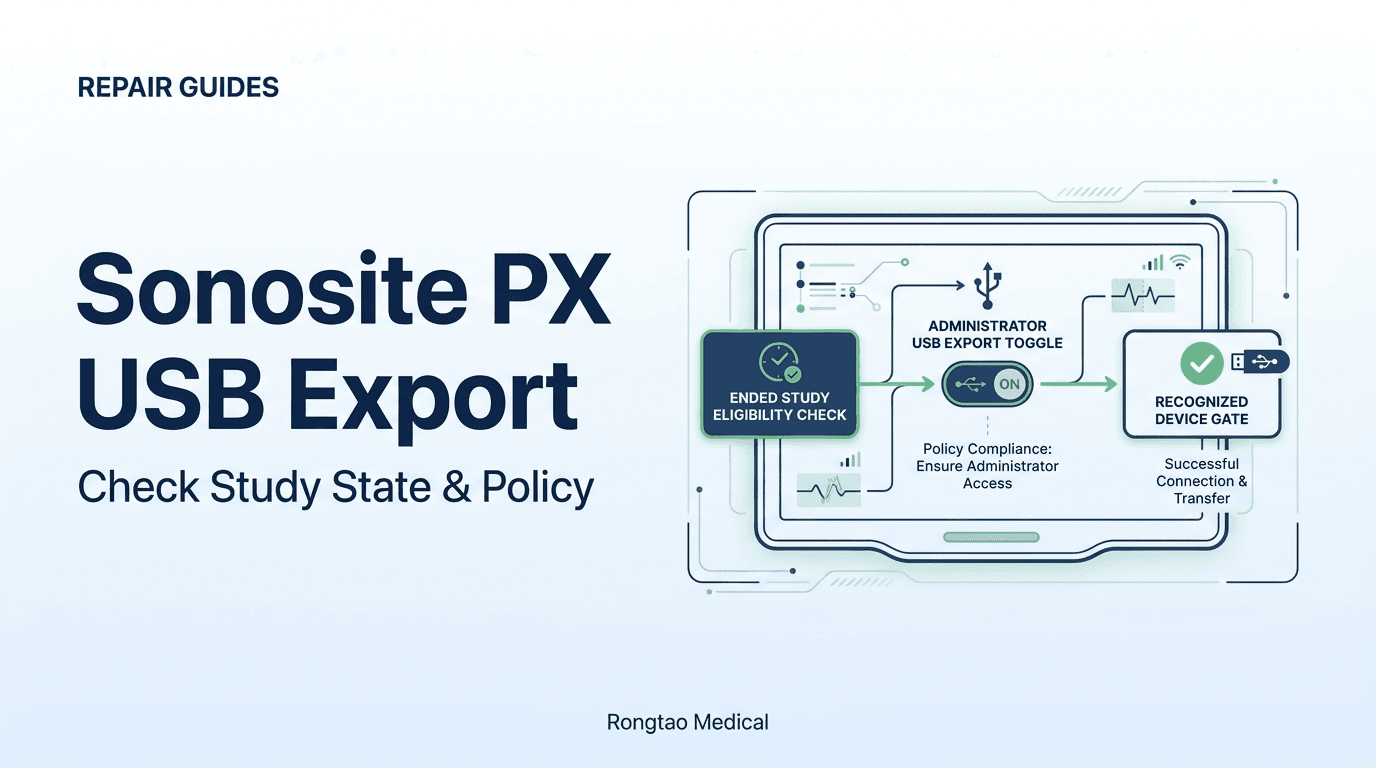
The support ticket trap: hardware fault or configuration gap?
Illustrative scenario (synthetic). A point-of-care ultrasound programme runs a fleet of Sonosite PX systems that move between departments, and a security review has just finished. Over the next week, three complaints come in. On one system, a clinician ends a study, inserts a USB stick and cannot find a USB destination. On another, the stick never appears in the device list. On a third, nothing at all can be exported. The work orders read 'USB port broken' and 'export module failed'.
Each complaint might be a hardware fault. But the PX user guide documents several non-hardware reasons for exactly these symptoms: an open study, an administrator setting, a guest login, an unsupported storage device, and a removal that interrupted the export. The family precedent is the same. The Sonosite Edge II needle guide decision path and the Sonosite PX barcode mapping guide both found documented states and settings that look like hardware failure. Checking these gates first costs minutes. It avoids pulling a system from service, and it avoids a dispute with whoever set the security policy. 1
What does the PX require before a study can leave on a USB device?
The Sonosite PX User Guide (P21894-09C) states the eligibility rule in one sentence, in its Managing Patient Data chapter: 1
“You can export patient studies if they are ended and if the system administrator has not disabled USB export. Studies include images, video clips, and the patient report.”— FUJIFILM Sonosite PX User Guide (P21894-09C, p. 145)
That sentence sets two prerequisites: the study must be ended, and the administrator must not have disabled USB export. The USB settings page (system menu > System Settings > USB) repeats the policy condition: 1
“You can only export data to a USB storage device if your administrator has enabled this setting.”— FUJIFILM Sonosite PX User Guide (P21894-09C, USB settings note, p. 66)
The manual export procedure adds the operating details. Connect the device and tap Patient List. Select one or more studies, then tap Send to and choose USB; a list of USB storage devices appears. Select a device, enter a file name, and tap Export. 1 The two eligibility conditions, the device step in this procedure and the guide's guest-login rule give four checks, summarized in Table 1. The guide does not say whether a disabled option is hidden or grayed out, so record what your system actually shows.
| Gate | What to observe | What the guide documents | Owner and next step |
|---|---|---|---|
| 1. Study state | Patient list: which study is the current active study (listed in blue)? Note that selected studies are also highlighted in blue, with a check mark. | Studies can be exported if they are ended (p. 145). END STUDY is in the top navigation bar (p. 69). Turning off the system also ends the study (p. 69). | Operator: end the study. To add images afterwards, use Append, which starts a new study with the same patient information (p. 143). |
| 2. Administrator policy | Administrator: System Settings > Administration (log in) > Admin Settings. | Enable export to USB check box: select it to allow export, deselect it to prevent export. Enabled IO devices > USB devices: deselect it to prevent any USB device from connecting (p. 43). | Facility administrator: confirm the setting against facility policy. Change it only through the facility's approval route. |
| 3. Login state | Is the session a guest session? Does the patient list open? | Guests cannot access other patient information, studies, or system settings (p. 49). Troubleshooting entry: 'Ensure that you are logged in as a user, not as a guest' (p. 174). | Operator: log in with an assigned user account. |
| 4. USB device | USB icon in the system status area; the device list on System Settings > USB. | No USB icon: the device may be defective (p. 23). Device not in the list: check insertion and use the device that came with the system. 'Ensure the USB storage device is valid' prompt: use the included device and make sure it is not defective (p. 174). | Biomed: retest with the supplied device or another device FUJIFILM Sonosite recommends (p. 23 warning). |
Source: FUJIFILM Sonosite PX User Guide P21894-09C, pages as cited; reviewed October 20, 2026. Labels and behavior are revision-specific—confirm against the guide for the installed software.
Gate one: why must the study be ended before export?
This gate catches the simplest misunderstanding: trying to export a study that is still open. FUJIFILM Sonosite's official Sonosite PX Help Video – Managing Data says so directly: 3
“Please note that you can't export an open exam, you must end it first.”— FUJIFILM Sonosite, Sonosite PX Help Video – Managing Data (uploaded July 28, 2020)
The patient list makes the state visible. The guide says the list shows 'the current, active study (in blue), as well as completed and saved studies.' One detail matters when you read the screen: selected studies are also highlighted in blue and display a check mark. Before you conclude that a study is still open, confirm which blue row is the active study and which is just a selection. 1
To clear the gate, tap END STUDY in the top navigation bar. If archivers are configured, confirm or adjust them in the end-study dialog, then tap Yes. The guide also notes that turning the system off ends the study and logs the user out. A study that seems to have vanished from the active slot after a power cycle has probably been ended, not lost. 1
If more images are needed after the study has ended, the guide provides Append: 1
“You can use the Append button to start a new study that has the same patient information as an ended study. Depending on your archiver, the two studies appear as one study when exported or archived.”— FUJIFILM Sonosite PX User Guide (P21894-09C, p. 143)
The appended study is new and open, so it too has to be ended before study-level export. Whether the two studies later look like one depends on the receiving system, not the PX alone.
One documented route does work before a study ends: exporting individual images and clips from the review page. The guide warns that these files 'do not contain study information'. It also says this method 'does not export the complete patient study, and the study does not display the USB export icon in the study list.' 1 That explains a common contradiction: someone exported images from this system, yet the patient list shows the study as not exported. Individual export is not a replacement for study export, and it does not prove that study export works.
Gate two: administrator policy—Enable export to USB and Enabled IO devices
If the study is ended and a USB destination is still missing, check the administrator settings next. This is the first check after any security review or policy push. Administrators reach the page through system menu > System Settings > Administration (logging in if prompted) > Admin Settings. Under its heading 'Controlling data import and export', the guide documents two separate controls. A third setting on the same page affects exported content. 1
- Enable export to USB: 'If you want to allow exporting data, select the Enable export to USB check box. If you want to prevent exporting data, deselect the Enable export to USB check box.' This setting controls export only. 1
- Enabled IO devices > USB devices: 'If you want to prevent any USB device from connecting to the system, deselect the USB devices check box.' The same section has Wi-Fi and Ethernet check boxes. This is broader than the export setting: it applies to any USB device. If USB accessories such as a barcode scanner stopped working at the same moment as export, this setting is a stronger suspect than the export check box. That is an inference from the wording, so confirm it in Admin Settings. 1
- Hide patient information on export: a separate check box under 'Hiding patient information' controls whether patient name and ID are removed from exported data. It changes what an export contains. It does not decide whether export is available. 1
For an audit trail of what changed, the guide documents Admin Settings > Compare Security Controls. It generates a report comparing current settings with the factory defaults, which can be saved to a USB drive. An administrator can attach that report to the ticket. Then 'did the security review change export?' has a documented answer instead of a recollection. 1
Mixed Sonosite fleets add a labeling problem. The current PX, LX and ST guides use an enabling check box. The older X-Porte, Edge II and SII guides use a Disable USB Export selection on an administrator page. Table 2 maps the labels and page anchors we confirmed in each guide.
| System and guide | Page(s) | Documented control | Related statements in the same guide |
|---|---|---|---|
| Sonosite PX, P21894-09C (current) | 43; 145; 66 | Admin Settings: Enable export to USB check box; Enabled IO devices > USB devices check box | Export only if studies are ended and USB export is not disabled (p. 145). USB settings note: export only if the administrator has enabled the setting (p. 66). |
| Sonosite PX, P21894-02B (historical) | 4-8 | Admin Settings: deselect Enable export to USB; under Enabled I/O devices, deselect USB devices | The same two controls appear in the earlier PX revision. |
| Sonosite LX, P28669-08C | 40; 144 | Same two Admin Settings controls and wording as the current PX guide | Same ended-study and administrator eligibility sentence (p. 144). |
| Sonosite ST, P31244-04B | 36; 130 | Same two Admin Settings controls and wording as the current PX guide | Same ended-study and administrator eligibility sentence (p. 130). |
| X-Porte, P14645-08B | 3-3; 4-46; 2-17; 4-44 | Administration login > Administrator in User List > select Disable USB Export > Save. This also prevents DVR recording to a USB memory stick. | Export if exams are ended and USB export is not disabled (p. 4-46). Software-encrypted USB memory sticks are not supported (pp. 2-17, 4-44). |
| Sonosite Edge II, P20516-08B | 3-3 to 3-4; 4-31; 2-10 | 'To disable USB export': log in as Administrator > select Disable USB Export | 'USB export can be disabled by the Administrator' (p. 4-31). No USB icon: the device may be defective or software-encrypted (p. 2-10). |
| Sonosite SII, P20536-07B | 3-3; 3-13; 2-7 | 'To limit USB export of exam data': log in as Administrator > select Disable USB Export | Export can be disabled to help secure patient information (p. 3-13). No password-protected or encrypted devices; FAT-32 format required (p. 2-7). |
Source: FUJIFILM Sonosite user guides as cited, each read at source on October 20, 2026. Page numbers are the printed page numbers of the named revision; other revisions may differ.
Sources for Table 2: 1 10 4 9 5 6 7 The table is a label map, not an equivalence claim. Settings, software versions and accessories differ by system and revision.
Why would an administrator disable export? The documented security rationale
When clinical staff find export switched off, they often treat it as an IT mistake. Engineers may then be asked to 'get around it'. The manufacturer documents the opposite framing. In the official Sonosite PX Help Video – Configuration: 2
“As an administrator you can configure the system to protect patient information by disabling the USB export feature or by hiding patient information in exported data or on the screen.”— FUJIFILM Sonosite, Sonosite PX Help Video – Configuration (uploaded July 28, 2020)
The manufacturer's security disclosure for the PX, the Manufacturer Disclosure Statement for Medical Device Security (MDS2, document D24031-18, released October 2025), records the same controls in its standard question format: 8
- Hardening (SAHD-14): 'Administrator can disable the following: Ethernet, WiFi and USB devices, export to USB devices.'
- De-identification (DIDT-1): 'The device can be configured to obfuscate PHI on the display screen and has the ability to de-identify patient data prior to USB export.'
- Accounts and audit: individual user accounts are required in Secure mode, and accounts can be created for Clinical users, Administrators and Guest users (AUTH-2). The audit log records import/export of data from removable media such as a USB drive (AUDT-2.7). Audit content can be exported on physical media (AUDT-5.1).
The user guide adds context of its own. It reminds healthcare providers of HIPAA and the EU Data Protection Directive (95/46/EC). It also says FUJIFILM Sonosite 'strongly recommends configuring the system in secure mode'. 1 Taken together, a disabled export path can be the system working as the facility configured it. The right response is a request to the system administrator, and to whoever owns removable-media policy, explaining the clinical need: teaching files, a site without a DICOM archive, a research protocol. This article does not describe, and service staff should not attempt, any service-mode, operating-system or account workaround.
Gate three: log in as a user—what does the guest lock block?
The PX can be configured in secure mode, which requires every user to log in, or non-secure mode. The guide says non-secure mode 'allows any user to access all system functions, except administrative settings, without requiring a login.' In secure mode, the login screen offers a Guest option, and the guide defines what a guest can do: 1
“Guests can scan, save images and clips, view worksheets, and manage patient data for the current study. Guests can also access on-board help and educational videos. Guests cannot access other patient information, studies, or system settings.”— FUJIFILM Sonosite PX User Guide (P21894-09C, p. 49)
Study-level export starts from the patient list, and the guest boundary excludes other studies and system settings, so a guest session is a dead end for exporting finished studies. The troubleshooting table gives the matching entry: 1
“Cannot access patient form. Cannot access patient list. Ensure that you are logged in as a user, not as a guest.”— FUJIFILM Sonosite PX User Guide (P21894-09C, Troubleshooting, p. 174)
The fix is to log in with an assigned user account. Do not change the system's mode to get around the lock. The guide warns that switching between secure and non-secure modes means re-running the configuration wizard (administrators only), 'which resets the system and deletes all data.' 1
Gate four: is the USB device recognized, valid, and unencrypted?
Once study state, policy and login are settled, look at the storage device. The PX guide's first signal is simple: 'The USB storage device is ready when the USB icon appears on-screen.' Its caution adds: 'If the USB icon does not appear in the system status area on the monitor, the USB storage device may be defective. Replace the USB storage device.' The USB settings page lists information about connected USB devices. As in the Sonosite PX USB settings page recognition check, it is the place to confirm what the system actually sees. 1
The device also has to be one the manufacturer supports. The guide's warning reads: 'Use only accessories and peripherals recommended by FUJIFILM Sonosite.' It adds that non-recommended peripherals could result in electrical shock and system malfunction. A retail or conference giveaway stick is therefore not a valid test device, even if it works on a laptop. 1 The troubleshooting table covers the device-side symptoms:
- 'USB storage device does not appear in the list': 'Check that the USB storage device has been properly inserted into an available USB slot. Use the USB storage device that came with the system.' 1
- 'System prompts you to ensure the USB storage device is valid': 'Use the USB storage device included with the system. Make sure that the USB storage device is not defective.' 1
- 'System prompts you to ensure the USB storage device contains valid data': 'Make sure that the data are present on the USB storage device. Re-export the original data onto the USB storage device. Contact your system administrator.' 1
Older Sonosite guides are more explicit about encryption: 5 6 7
“The system does not support software-encrypted USB memory sticks.”— FUJIFILM SonoSite X-Porte User Guide (P14645-08B, pp. 2-17 and 4-44)
The Edge II guide says a missing USB icon can mean the device is 'defective or software-encrypted'. The SII guide says the system 'does not support password-protected or encrypted USB storage devices' and that devices 'must be in FAT-32 format'. The current PX guide does not repeat the encryption or FAT-32 statements. Treat them as family evidence that makes an encrypted or unusually formatted stick worth ruling out, not as a PX specification. The PX-specific instruction is to use the supplied or recommended device. The community record is thin and comes from other brands. One 2017 MedWrench thread about a Zonare system whose USB drive did not appear as a destination includes a reply blaming drives with U3 'smart' software. That is an anecdote, not PX evidence. 12
What proves an export happened: how do the status column and ePHI log work?
When people disagree about whether a study left the system, the PX keeps two documented records. Neither is a complete forensic trail on its own. 1
The first is the patient list's export column. The guide lists an icon column for 'the export status of the study', separate from the Status column that shows DICOM archive status. After the export procedure, it states: 1
“The [export icon] column of the patient list indicates whether the system has exported the study.”— FUJIFILM Sonosite PX User Guide (P21894-09C, p. 145; column list on p. 142)
Two limits apply. First, individual image or clip exports do not set the study's USB export icon (p. 106). Second, the icon records what the system did, not whether the files later survived the trip. A drive pulled early, or mishandled on the receiving computer, can still give a bad copy. If the column shows the study as exported but the files are unusable, look first at removal timing and the receiving side. 1
The second record is the ePHI log, one of several logs on the Logs settings page: 1
“ePHI Collects information about creating, deleting, modifying, accessing, viewing, storing, and exporting patient data.”— FUJIFILM Sonosite PX User Guide (P21894-09C, Logs, p. 67)
The guide adds three constraints that matter for evidence. Only administrators can access the ePHI logs. Only an administrator can clear logs. And 'the logs have limited space and overwrite existing content when full.' The log is not a permanent ledger: export it soon after the disputed event. Logs export as .csv files to a USB storage device. The export caution warns that 'any logs that were previously exported to the USB storage device will be deleted', so copy earlier exports elsewhere first. The guide does not publish which fields an ePHI export entry contains. The MDS2 says the audit log records a user ID and date/time, and covers removable-media import/export. Read your own log rather than assuming the fields. 1 8
| Artifact | Where | What the guide or MDS2 says it records | What it can and cannot settle |
|---|---|---|---|
| Export column | Patient list | Icon indicating whether the system has exported the study (pp. 142, 145) | Shows study-level export. Individual image/clip exports do not set it (p. 106). |
| Status column | Patient list | DICOM archive status: pending, in progress, archived, storage committed, suspended; no icon means stored locally and not archived (pp. 143–144) | A separate path from USB. Do not read an archive icon as proof of USB export, or the reverse. |
| ePHI log | System Settings > Logs (administrators only) | Creating, deleting, modifying, accessing, viewing, storing and exporting patient data (p. 67). The MDS2 adds user ID, date/time and removable-media import/export. | Whether an export was recorded, and under which user. Overwritten when full, so export promptly. |
| User log | System Settings > Logs | User logins and user creation, plus when the log was exported or cleared (p. 67) | Who was logged in (user or guest), and whether logs were cleared. |
| System and Assert logs | System Settings > Logs | System: normal and abnormal behavior plus transducer and system diagnostic details. Assert: system exceptions and major error events (p. 67). | Supporting material for technical support. The guide does not say they record USB-port electrical events, so do not promise that. |
| Compare Security Controls report | Admin Settings (administrator) | Report comparing current settings with factory defaults; can be saved to a USB drive (p. 49) | Documents the policy state at the time of the complaint. |
Source: FUJIFILM Sonosite PX User Guide P21894-09C (pp. 49, 67–68, 106, 142–145) and MDS2 D24031-18 (October 2025).
Export succeeded but patient data is missing: why is de-identification the default?
A related complaint is that the export worked but the files have no patient name or ID. The manual export procedure explains it: 1
“By default, patient information such as names and IDs are removed from images and clips before exporting to protect patient confidentiality.”— FUJIFILM Sonosite PX User Guide (P21894-09C, p. 145)
During manual export, the operator can select Include patient information on images and video clips. Separately, the administrator's Hide patient information on export check box sits in Admin Settings (p. 42). The guide does not say how the two interact when they disagree. Test the combination with a synthetic study and record the result before you train staff on it. The guide pairs the include option with a caution that patient information may be 'subject to country-specific security guidelines'. Including it is a policy decision, not a troubleshooting step. 1 8
Internal storage full alert: why is this a retention decision, not export eligibility?
A full internal drive is a separate problem that often lands on the same ticket. The troubleshooting table reads: 1
“System displays the alert ‘…internal storage device is full. Free internal storage space by ending the current study, archiving or exporting patient studies, and then deleting them from the system.”— FUJIFILM Sonosite PX User Guide (P21894-09C, Troubleshooting, p. 174)
The guide also notes that low internal storage can affect system performance. If an administrator has enabled the storage alert, the system prompts users to delete archived or storage-committed studies (p. 146). None of this changes whether a study is eligible for export. 1
This article gives no deletion instructions. The guide itself presents USB export as one form of archiving: 'You can export studies to a USB storage device for archiving. Make sure you archive patient studies regularly.' (p. 145). The older X-Porte and Edge II guides describe a USB stick as 'temporary storage' and tell users to archive exams regularly. 1 5 6 Whether a USB copy counts as the retained record is a facility retention decision, not something the console decides. The patient list's Status column tracks DICOM archive and storage commitment only. For the evidence a facility should hold before treating local copies as disposable, see ultrasound DICOM storage commitment and local deletion decisions.
DICOM or multimedia: what does each export type put on the drive?
Some 'export is broken' reports are really format mismatches: the files are on the drive, but the receiving computer cannot use them. The USB settings page sets the export type: 1 11
- DICOM export: 'creates DICOMDIR files readable by a DICOM reader. Video clips export in MJPEG format.' Options add the Basic Text Structured Report and the Comprehensive Structured Report. Sonosite's connectivity page describes the DICOMDIR as the structure that lets DICOM-compatible software load and navigate the files. 1 11
- Multimedia export: 'organizes files in a standard folder structure. Video clips export as mp4 files.' A sort order is selectable. 1
For either type, the user selects an image format. JPEG formats also need a compression level. The guide recommends RGB image format and low compression for optimal DICOM image quality, and its JPEG section reads: 1
“When transferring or exporting images in JPEG format, the system uses lossy compression… In some circumstances, lossy-compressed images may be inappropriate for clinical use.”— FUJIFILM Sonosite PX User Guide (P21894-09C, Limitations of JPEG format, p. 66)
Table 22 in the guide sets the JPEG levels: Low is 100% quality (difference 'near 0'), Medium is 90%, and High is 75% ('general loss of detail'). Lossy encoding cannot be undone downstream, as covered in ultrasound DICOM lossy compression history. The guide does not say which measurement or calibration data survive in either format. If the receiver must re-measure, check the received files themselves before relying on them. Clinics replacing a failed thermal printer with USB export should make the same format decision; see ultrasound thermal printer repair, replace or go digital. 1
| Parameter | DICOM export | Multimedia export |
|---|---|---|
| Structure | DICOMDIR files readable by a DICOM reader | Standard folder structure with a selectable sort order |
| Video clips | MJPEG | mp4 |
| Still images | Selectable image format; JPEG adds a compression level (Low/Medium/High). The guide recommends RGB and low compression for optimal DICOM image quality. | Selectable image format; JPEG adds a compression level |
| Structured reports | Optional Basic Text SR and Comprehensive SR | Not documented |
| Patient identifiers | Removed by default unless included at export (p. 145) | Removed by default unless included at export (p. 145) |
| Measurement/calibration data | Not documented in the guide; verify on the receiver | Not documented in the guide; verify on the receiver |
Source: FUJIFILM Sonosite PX User Guide P21894-09C (pp. 65–66, 106–107) and FUJIFILM Sonosite Connectivity support page. 'Not documented' means the guide does not state it; verify on the receiver.
The corruption window: why does removing the stick early create incomplete files?
Some broken-export reports come from a drive that was removed too early. The guide gives the completion window: 1
“The files are finished exporting approximately five seconds after the USB animation stops. Removing the USB storage device or turning off the system while exporting may cause exported files to be corrupted or incomplete.”— FUJIFILM Sonosite PX User Guide (P21894-09C, p. 145)
The same rule appears on the device-insertion page ('wait at least five seconds after the USB animation icon stops') and in the log-export steps. A related caution warns users not to bump or put pressure on a connected USB device, because 'the connector could break'. The guide also says that restarting the system during data-intensive background work, such as transferring patient files, 'can result in loss of patient data'. 1 If the export column shows a study as exported but the copy is incomplete, ask how long after the animation stopped the drive was removed, then re-export to a recommended device.
The USB Image Gallery causes a second false alarm. It shows only files at the root level of the drive, and individually exported images are written to the root for that reason. The guide says to display only images provided by FUJIFILM Sonosite or captured on the system. Images in the gallery 'should not be used for diagnostic purposes'. A study export that does not show in the gallery is not, by itself, evidence that USB has failed. 1
Fleet acceptance and preventive maintenance: how should teams verify export?
Export failures are least disruptive when they are found before a clinical need. The ultrasound preventive maintenance checklist already treats peripherals and outputs as inspection items. A USB export check fits there.
Suggested check (synthetic data only). Create a test study with an obviously fictional patient name, such as 'TEST, EXPORT'. Save an image and a short clip, then tap END STUDY. Export the study in the facility's configured export type to the device supplied with the system, or to another FUJIFILM Sonosite-recommended device. Then confirm four things: the USB icon appeared; the study shows the export icon; an administrator can see the export in the ePHI log; and the files open on the receiver the facility actually uses. Afterwards, the facility removes the test study under its own procedure. 1
| Trigger | Check | Pass evidence | If it fails |
|---|---|---|---|
| New system or return from service | Synthetic ended study exported to a recommended device on each USB port the facility uses | USB icon appears; export icon is set; ePHI log entry (administrator); files open on the intended receiver | Record the Admin Settings state first. If export is meant to be disabled, record that as the accepted configuration. |
| Software update | Repeat the synthetic export | Admin Settings and USB settings match the recorded baseline. An administrator can save a Compare Security Controls report. | The administrator reconciles any difference through change control. |
| Security or login policy change (for example, directory-server login) | Confirm users can log in and reach the patient list; repeat the export | Users are not landing in guest sessions; export state matches the approved policy | Route clinical-need requests to the administrator or information security. No workarounds. |
| Before the system leaves for repair, sale or disposal | Confirm required studies are retained according to facility policy before any data step | Facility retention evidence, not the export icon alone | Follow ultrasound patient data export and erase before repair or resale. |
Source: Rongtao Medical editorial suggestion built on the documented behavior in FUJIFILM Sonosite PX User Guide P21894-09C. It is not a manufacturer procedure; adapt it to facility policy.
When is it genuinely a service matter—and what evidence belongs in the package?
Hardware can still fail. The guide itself warns that a USB connector can break if a connected device is bumped. Treat the problem as service work when all of the following are true and recorded: 1
- Gate 1 passes: the study is ended, not the current active study.
- Gate 2 passes: an administrator confirms that Enable export to USB is selected and that USB devices is selected under Enabled IO devices.
- Gate 3 passes: the session belongs to a logged-in user, not a guest.
- Gate 4 still fails: the device supplied with the system, or another recommended device that works on a different PX, gets no USB icon and does not appear in the USB device list on every port tried.
- Anything unusual is recorded: if an assert page appears, the guide says to note the error message and number, contact FUJIFILM Sonosite, then restart the system.
Do not open the system or attempt port-level electrical checks as part of triage. Route the case to qualified service or FUJIFILM Sonosite Technical Support with an evidence package rather than a 'USB broken' ticket: 1 3
- System identification: system serial number (on the bottom of the system), software version and PCBA serial number. The guide lists these as the details Technical Support asks for in its licensing procedure; the software details are on the System Information page.
- Configuration state: photos of Admin Settings (export and Enabled IO devices), the USB settings page and its device list, plus a Compare Security Controls report if an administrator can generate one.
- Patient-list state: a photo showing the study as ended, with its export and Status columns (synthetic studies preferred).
- Logs: User, System and Assert logs, plus the ePHI log exported by an administrator. Alternatively, an administrator can upload logs through the System Portal connection.
- Media test record: make and model of each device tried, which ports, the result on a second PX, and whether the USB icon appeared.
The official Managing Data video gives the same escalation path: for further help, send the system's log files to FUJIFILM Sonosite technical support. 3
Where Rongtao fits—and where it does not
Rongtao Medical provides component-level ultrasound repair, probe repair and replacement parts for hospitals, independent service organizations and distributors. The boundaries for this topic are:
- Documented brand scope: Rongtao's documented coverage lists GE Healthcare, Philips, Siemens, Hitachi, Mindray, Samsung Medison, Toshiba (Canon), Aloka and Biosound Esaote. 13
- Sonosite boundary: FUJIFILM Sonosite is not in Rongtao's documented repair-brand list. Rongtao is not an authorized FUJIFILM Sonosite distributor or service provider. Product names and documentation belong to their owners. 13
- Who owns what: export and login policy belongs to the facility's system administrator and information-security owners. Product behavior and genuine hardware faults on a PX belong to qualified service or FUJIFILM Sonosite Technical Support.
- Purpose of this guide: a neutral triage reference for multi-brand fleet teams, written to prevent hardware orders when the cause is a state, a setting or an unsupported accessory.
For board, probe or parts questions on supported brands, see our ultrasound services overview or contact Rongtao Medical. Include the OEM, model, manufacturer part number, photos of both sides of the board or label, the symptom or error code, quantity and destination.
Frequently asked questions
Why is USB export unavailable or grayed out on our Sonosite PX?
Work through the documented gates in order. Is the study ended? Has the administrator deselected Enable export to USB, or deselected USB devices under Enabled IO devices? Is the session a guest session? Is the device recognized (USB icon and device list)? The guide does not describe exactly how a disabled option looks on screen, so record what you see. 1 2
How do I know whether the administrator disabled USB export?
An administrator can open System Settings > Administration > Admin Settings and check both the Enable export to USB box and the USB devices box under Enabled IO devices. A Compare Security Controls report records the current settings against the factory defaults. 1 10
Can I export an ultrasound study that is still open?
Not as a study. The guide allows study export only for ended studies, and the official Managing Data video says you must end an open exam first. Individual images and clips can be exported from the current study's review page. Those files carry no study information and do not set the study's export icon. 1 3
Why do our exported images have no patient name or ID?
By default, the PX removes patient names and IDs from exported images and clips. The operator can select Include patient information on images and video clips at export. An administrator setting, Hide patient information on export, also exists. Test how the two interact on your software version, and follow the facility's privacy policy. 1 8
The USB stick does not appear in the device list—is the port broken?
Not yet established. The guide's fix is to check insertion and use the USB storage device that came with the system. Its warning limits peripherals to those FUJIFILM Sonosite recommends. Older Sonosite guides add that software-encrypted sticks are not supported. A port fault becomes likely only when a recommended device that works elsewhere fails on every port after gates 1–3 pass. 1 5 7
Does exporting patient studies to USB count as archiving?
The PX guide describes USB export as a way to archive and tells users to archive regularly. Older X-Porte and Edge II guides call a USB stick temporary storage. Whether a USB copy satisfies retention is a facility policy decision. The patient list's Status column tracks DICOM archive and storage commitment, not USB. 1 5 6
What is the difference between DICOM and multimedia export on the PX?
DICOM export creates DICOMDIR files for a DICOM reader, with MJPEG clips and optional structured reports. Multimedia export uses a standard folder structure with mp4 clips. In both, JPEG compression is lossy, and the guide cautions that lossy images may sometimes be inappropriate for clinical use. 1 11
What evidence should clinical engineering collect before escalating an export problem?
System serial number, software version and PCBA serial number. Photos of Admin Settings and the USB device list, plus a Compare Security Controls report if available. The patient-list state for the study. User, System, Assert and administrator-exported ePHI logs. And a record of every device and port tested. 1